WordPress Nav Menu Access Keys
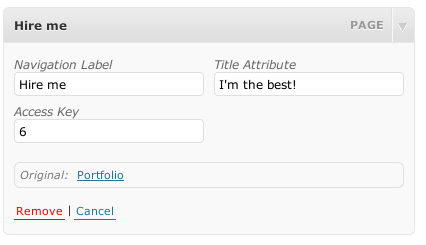
The WordPress Nav Menu Access Keys Plugin allows you to add access keys to your WordPress Navigation Menus to increase the accessibility of your website. It only works for WP versions 3.0 and higher.
Use:
Use of this plugin is simple. On the Admin panel when you add a new menu item to the wordpress 3.0 menus, there is a new option along with the title and the url for the item. In this box, add a single-character-long access key to make it much easier for your users to browse your website.
Unfortunately, the plugin requires JavaScript in the administration panel. There is no way around this because of the way WordPress is programmed; however, your users do not need JavaScript enabled.
Download:
Download Latest WordPress Access Keys
Installation:
- Download the zip file, unzip it and upload to your wp-content/plugins folder
- Upload to your plugin directory.
- Activate.
- Add access keys to menu items under the Appearance > menu panel.
The plugin is hosted in the WordPress Extend database so you can also manually install from your wordpress admin panel
- Go to “Add New” under Plugins
- Search for “Access Keys”
- Click install now, confirm and follow any other instructions you are given.
Uses of access keys
While for the most part access keys are used for allowing users who can’t use mice to browse a website easily, they can make your website easier for others also by allowing them quickly to access favorite pages.
One example of a use is on a daily comic website to add a “previous” and “next post” menu that allows the user to browser through the archive without clicking the mouse.
How do I use Access Keys
Different browsers implement Access Key shortcuts differently. The following is a list of browser access key key combinations.
- On Windows and Linux. Firefox 2.0+: Hold down the Alt Key and the Shift key, and press the access key.
- On Windows. Internet Explorer 5+: Hold down the Alt key, and press the number or letter of the access key. Release both keys and press Enter.
- On Windows. Internet Explorer 4, Firefox 1.0, Mozilla and Netscape 7+: Hold down the Alt key and press the number or letter of the access key.
- On Mac OS X. Firefox, Mozilla, Netscape 7+, Internet Explorer 5+, Safari and Omniweb: Hold down the Ctrl key and press the number or letter of the access key.
- Konqueror: Press and release the Ctrl key, then press the number or letter of the access key.
- On the Mac Internet Explorer 4.5 and on all platforms Netscape version 6 and earlier: Access keys are unsupported.